Thursday, 31 July 2014

Lesson 23

To get some ideas for my group project which is coming sooner and sooner, i took to the internet to get some ideas and look at some designs and themes that magazines and newsletters use for a health segment. Our target audience is women hence we have to look into a design and layout that appeals to them. Here are some health layouts (Not all examples relate to my part about diet, but the examples put up are related to the theme of health to get a feel for the general layout, pictures and content used by this category)


http://www.phoenixhelix.com/wp-content/uploads/2014/04/DSC01140.jpg

What i like about this first layout is the theme it adopts, it is doing an article on sleep (Natalie's part). It uses a very nice and calming white that feels like clouds to me giving that dream look. The nice light colours blends very well with the background and is visible.


http://www.7things.com.au/wp-content/uploads/2009/07/pick20up20your20posture11.jpg

Another example i got was this, similar to the previous example, this example makes use of one colour for the theme, green. Why i like this layout is because the green just screams "health" to me with that fresh colour. The article is also spacious and very neat.


https://blogger.googleusercontent.com/img/b/R29vZ2xl/AVvXsEhbrOxNJx04MALR5LF6qqoS6ISk07_Y22tWCaVtOIO0-iFNBPqwJDrmhe9JPyekQB3WqYFL23tGeaE7UUIvEfnGRK9CvTbdy3wvsV14_sFxmHEQ1CkO74iOpUg5eoW9V4jnVtHfowQlccCO/s1600/Parents%2527+Pages+01.jpg

This one is a strange one to me, i find it both good an bad. I like the concept as it uses animated figures to show the health components. However it is too cramp for me and there are too many colours that i do ot feel any flow in the article.


http://calorielab.com/news/wp-images/post-images/fytte-morning-banana-diet-spread.jpg

This newsletter, is one i find really bad, it is a diet article in japan. To me everything seems to be wrong, there is no colour theme, no proper layout, no flow, it is messy and it looks like it is published for a child. 


http://theharcombediet.com/wp-content/uploads/2009/12/Star071209web.jpg

The last one, i like the concept here, the way they use the pictures and colours. Compared to the previous example, it uses the same colourful concept but it is much nicer and is laid out well.  It does seem a bit cramped to be honest but i see a flow when reading it. 

After looking through some of these health articles and layouts i feel i have a better idea on what type of pictures and colours i want to use. The deadlines are coming thick and fast so its time to really concentrate on my project.

Saturday, 26 July 2014

Lesson 22

Today was a vital vital lesson, no other way to put it. This was concerning our submission of our group project and for this we have to create a book, and that is what we were taught.

For our group project, we are all doing 2 pages each, and we will have to combine them into a book.  A book also can be used to apply a style to all the pages to get the consistency as talked about in the previous post.


After creating the book, it is time o add the documents into the panel by simply clicking and dropping it into the book, the documents can also be arranged here. The pages it covers can also be seen.


Our group project was also getting closer so we had to work on that too. My group is doing a newsletter on women's health. I drew out a few layouts to visualise how my 2 pages would turn out. These were my sketches.


These are the sketches that i have so far, since i will be doing diet as part of our topic health, there will be a lot of colours to put to make the magazine bright and healthy. Yet to find the exact articles i will be planning to use but my layout has to be approved first. Also on a side note, drawing the grid was very time consuming especially the modular grid, drawing out and to precisely measure the length to use.

Thursday, 24 July 2014

Lesson 21

Todays lesson was about style sheets and of course we had some hands on work to do. First of all the style sheets. It is simply a format used for text and objects. It is a quick and efficient way to have a standard format for different pieces of work that need to have consistency, such as our group project.

We learnt about 2 styles today, paragraph style and character style.

Paragraph style: Paragraph style is a style that controls all paragraph attributes as shown in the picture below


This paragraph style sheet was very useful to create different paragraphs to make an article look interesting instead of boring. 


Just by playing around and trying different styles i came up with the example, some might argue that all these styles can be achieved without using the style sheets, however it is all scattered in different places and it may be hard to find, hence the paragraph style helps o make things easier and as mentioned earlier, paragraph styles is used to get consistency when there is more than a one page article. Furthermore for the paragraph style there is a very nice feature, if a certain part does not match the paragraph style, there will be a warning to tell us that an area does not match the style that was used,(a plus symbol) this can be solved by clicking the paragraph symbol or i can create a style based on the paragraph style


Character style: A style just to control character attributes such as fonts


For example, if there is a long paragraph but there is a really important quote, this is where character styles come in 


Using the character styles, i made the quote a red colour and used a different font to make it more obvious, and unlike paragraph styles, only the selected area will follow the style.

Lastly, after our style sheet lesson, we put all our skills learnt to the test. This is what i came up with


This piece was tough, for the left page scaling the letters to the right size and placing them took longer than expected but i got it done. The right page was more difficult because there was alot of character styling and paragraph styling to do while placing and aligning the article properly as well. Overall today was a very useful lesson as i learnt about how style sheets can be used the exercise was a tough one too.


Sunday, 20 July 2014

Lesson 20

Today was a studio b lesson so there were quite a few things we did. First we learnt about how to use an image and put the design to fill the words. Then we moved on to do another newsletter layout while learning new some new things we could do in indesign, and lastly we did a final newsletter layout to put all our skills to the test. This is the first layout we did.


So first we started with that coupon for "free adult diapers." As you can see, it has a really nice design of fonts, this is actually a picture. So what i had to do was first of all type out the words and select it. Next i had to get the picture and paste it into the font. One problem we faced was the picture we used was very large, the learning point was how to re-size an image properly. Another way of course is to get a smaller picture. Once it was  re-sized, all that was needed was to copy and paste the picture into the words. A few key issues was how to move the picture inside to get the exact design we want to be seen in the words, this was solved by zooming in very close and selecting the picture. One more thing was now that the words were selected, we could not edit it anymore hence it was emphasised that we should make sure we get exactly what we want before selecting the words and converting it.

The header, the left column and the body text were straight forward, the hard part came when after cutting out the baby to put in the article, the text wrap kept making his diaper disappear.This problem was solved with some tolerance changes to help detect the edges of the diaper.

Lastly, if you notice his diaper, the words are typed along it.This was something interesting and creative to me. It was done by using the pen tool to draw out a path on his body and his diaper, next was to select the type on path tool and done, the words were following the path there.

In conclusion, this lesson was another interesting one as i learnt quite a few new things i did not know i could do for example using a picture as design for words like the coupon, and typing on a path. There were some problems such as resizing the large image and the disappearing diaper but I learnt from these mistakes and hopefully it will help me in my project. Here is the last exercise we were meant to complete.


Wednesday, 16 July 2014

Lesson 19

Todays lesson was all about grids. When we look at a newsletter we see the final outcome of the work and admire the layout, however this does not occur by chance. There are various grids that are used to create that perfect final design we see on each magazine and newsletter. Although there are probably more than the three grids we were taught, which were the modular grid, the modular grid, the aspect ratio grid of 1:1.414 and the star grid, these three grids were different and can be used to create different designs.

First was the modular grid, the modular grid was the most basic one of all where the canvas is divided equally into rows and columns to get a rigid square grid. This is what a modular grid looks like


http://robinseaman.files.wordpress.com/2010/04/modular-grid-for-project-6.gif

This is the simplest grid of all that we learnt and it is a very useful one. I will probably use a modular grid if i want to get a very neat design. Here are also more examples of the modular grid system


http://www.vanseodesign.com/blog/wp-content/uploads/2011/09/the-grid-system.png


http://www.webdesignstuff.co.uk/ta006/files/2011/01/grids4-example1.png

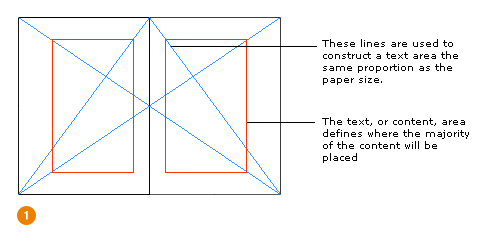
The next grid we learnt was the aspect ratio grid. The ratio of an A4 paper is 1:1.414 and hence the grid follows this ratio. This is what the grid looks like when completed


http://www.markboulton.co.uk/images/uploads/grid_pt1_2.gif

Here is an example of a possible layout i found using this grid. What i like about this grid is that it is more flexible than the modular grid and can probably make more flexible designs


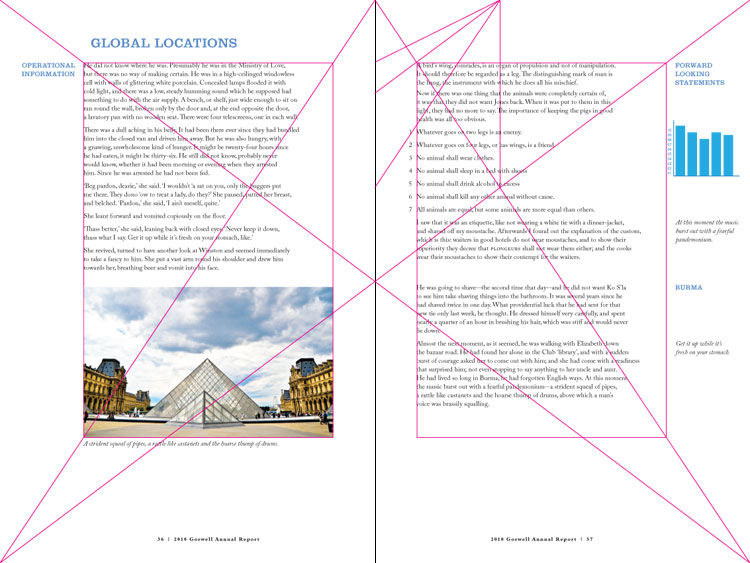
The last grid we learnt about was the star grid. This grid was an interesting one to me. As the name suggests, there is a star visible in the middle of the page. Lines can be added vertically and horizontally to get the required effects wanted. What i like about this grid is the creativity factor, compared to the first 2 grids, this layout is less rigid and there is more freedom to work with.


Here are some examples of the star grid


http://retinart.net/wp-content/uploads/media/images/secret-law-of-page-harmony/canon-3B-L.jpg


http://www.elliotjaystocks.com/assets/article_digest_4.jpg

Of course we were looking into all these grids for a reason, we had to learn to draw and use this grid to sketch out a layout for our project. I faced some difficulties in drawing the grids, firstly for the modular grid i found it time consuming drawing the many required lines. The aspect ratio grid of 1;1.414 was complicated at first but was simple to draw after some clarifications. As for the star grid i felt it was the easiest to draw out.


Sunday, 13 July 2014

Lesson 18

We did not have a lesson today, instead we each presented our advertisements that we had made for our previous assignment. So my advertisement was for the new jaguar xj. My concept was to use a sense of contrast to get the attraction on the red car in the middle and also give the buyer a sneak peak into the car. Here is the advertisement.


-The headline is new jaguar xj, to introduce the product that i am advertising.
-The black and white background is to give it a nice classy look and also to bring out the contrast of the red car in the middle which is the main attraction point.
-The copy is the slogan used by jaguar for their new xj model
-The car on the right side of the advertisement is to show the other side of the car which cannot be seen, it is a side view that is not shown in the left side of the advertisement.
-The points at the top right of the picture is to show some specifics of the car.
-The Grace, Space, Pace is the slogan i thought would work best and it is with the logo.

Some effects i used was the glow effect for the font to make it stand out and a brush tool to touch up some areas. Some problems i faced was finding the right car angle to get and put it to match the road. Also cutting was not straight forward, for some rough areas, i used the eraser tool to erase away the background.

Overall the design i had made was to show the red car in the middle as the main attraction using a sense of contrast and a bright red font. I am content with the design i have created but of course there is room for improvement


Thursday, 10 July 2014

Lesson 17

A vey short lesson was conducted today, we were just shown some good newsletter designs to inspire us and give us some ideas for our project. We then moved on to discuss our plan for our newsletter.

Here are some creative and good newsletter designs:


http://weddingphotography.com.ph/wp-content/uploads/2011/08/06-creative-magazine-spread-design-layout-ideas-for-your-page.jpg


http://weddingphotography.com.ph/wp-content/uploads/2011/08/28-creative-magazine-spread-design-layout-ideas-for-your-page.jpg


http://www.5cubecommerce.com/images/newsletter/Church-Youth-Ministry-Newsletter-Template-RO0090301-S.jpg

These good designs do not occur by chance but further show the importance of the fundamentals of colour, layout and typography. The colours used go together very well although they may be different colours or similar colours. The layout of the design in the first two are similar with pictures covering most of the newsletter with a only a small portion displaying text while the third one uses mainly text in the layout instead of pictures. For the typography, the first design uses colours to match with the theme and pictures. The second one uses white typography to match with the colour scheme as well but still remaining visible. The last one uses typography as the main focus of the newsletter of course using different colours and placements on the newsletter

We also discussed our group project today, for my group, we decided to do an 8 page newsletter on health. Our target audience will be woman and therefore our newsletter should be designed to appeal to them. We also decided to use some bright colours such as green and yellow for example as these colours usually represent health.


Saturday, 5 July 2014

Lesson 16

For this lesson, it was our first hands on lesson with indesign. We learnt to use the many different tools in indesign and designed our own newsletter following a step by step guide.

Starting off right at the beginning, one key thing that was emphasised was the settings of a new document. For big print companies, the machine that cuts the pages may not be accurate and hence thee needs to be some bleed. When typing, the words should not be aligned directly to the edges. We also standardised the gutter to be 5mm to allow the reader to tell paragraphs apart. This was what my work looked like after it was complete


-Right at the top, the stop press logo, the red line is supposed to be touching directly to the edge when the newsletter is printed and hence when designing, it had to go into the bleed area.

-For the text i used 3 columns, this was done by pressing the right and left keys to choose how many columns of text that you want. Similarly by pressing the up and down keys, the number of rows can also be changed.

-For the duck right in the middle this was done by using text wrap to get the text to go around the duck. This duck was cut out from a picture using photoshop and placing it in the layout.

-At the bottom i created a box and similarly filled it with text, notice that the colour is different and this is important to know which colours are visible to see on different backgrounds and which works best.

Here is another one i did using similar concepts


In conclusion the lesson was a good and productive one which taught me a lot about indesign and the different tools. There were a few difficulties at first as it was a new software but with practise i am sure i will improve. I also learnt how to cut and place images into my layout and use the text wrap tool which i like a lot.

Wednesday, 2 July 2014

Lesson 15

Our first EGD lesson back in school today and it was a short one. So basically we have already used Adobe illustrator And photoshop, so now we were moving on to another software which is indesign. We have to do a newsletter as our project and hence we will use indesign. We mainly looked into some principles that make a good newsletter.

1) Consistency
For our project we have to create an 8 page newsletter, so our tutor emphasised how the design should be consistent. Consistency refers to something such as colour combination or another example is alignment. There should be a good flow in the design. For example, the design does not necessarily have the same colours or secondary text but the design is consistent and nice.


2) Tools
For our project there is no way we are going to find any perfect picture at once and and use it straight away in our newsletter, we have to do edits. However indesign is not for editing pictures, it is for putting everything together and hence we still have to use the other tools such as photoshop and illustrator(if needed)


3) Fundamentals
-Colour
 Colours used have to be consistent as mentioned earlier and different contrast of colours can also attract  attention.

-Layout
 This refers to how the contents in the newsletter is placed and if there is a balance between the logo, pictures, headline and words etc 

-Typography
 The font used, kerning and paragraph spacing that goes into the newsletter which is very important


4) Audience
Knowing the target audience will be key to the design, for example if designing for an older audience, giving it a classic look may be a good idea.

In conclusion, when designing and discussing our ideas, these factors have to be looked into closely to get the desired outcome we want in our project. Putting all these principles together is what will make a good design.