The software we used was Adobe illustrator. A software that uses raster which brings us to the first point of raster vs vector.
 (fig 1 http://www.streamlinedesign.com/images/custom/RasterVsVector.png )
Raster files uses pixels while vector files uses geometry. And like many things, there are advantages and disadvantages. For raster images shading can be used, there is photographic detail and texture, however, raster files have size limitation, less precision and takes a longer time to process. For vector files, it is vice versa where there is no size limitation, more precise and is faster to process but has limited shading and less detail than raster files.
Next we were taught on how to use the software, Adobe illustrator, and the tools in it. There are two main columns in Adobe illustrator, the toolbar and the palettes and we learnt about both and how to use them.
We embarked on a mini project to familiarise ourselves with the software and the tools throughout the lesson and i will show it to you at the end what i came up with. Our first task was to draw a triangle with the pen tool. The pen tool in adobe illustrator uses anchor points and Bézier curves to create the shape or figure. So instead of drawing three lines to make our triangle, we just had to plot three points and the lines would connect itself. Not many problems were faced here for me but of course his was a very basic task.
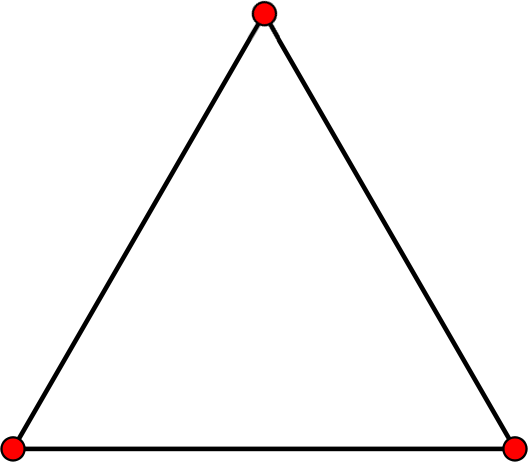
(fig 2 http://www.wpclipart.com/education/geometry/3_points_to_make_a_triangle.png )
The next tool we used on the toolbar was the selection tool which was tricky mainly because there were two. One is used for selecting and moving objects which is called the selection tool, the black cursor on the figure, while the other was to select and move anchor points which is called the direction selection tool, the white cursor on the figure.

(fig 3 http://graphicdesignertips.com/wp-content/uploads/2011/06/graphic-designer-tips-adobe-illustrator-video-tutorial-selection-tools.jpg)
Next we were taught how to use the shape tool. The shape tool is used when we need to draw out a regular shape. Instead of using the pen tool to plot various points, we could just click on the shape we want and choose the size that we want the shape to be. This tool is especially useful if we want to draw out a complicated figure such as a star for example. Also, the pen tool cannot be used to draw a perfect circle or ellipse and it is very simple with the shape tool.

(fig 4 http://blog.boxedart.com/images-vector/vec-tool.gif)
We were then taught how to use layers. Layers for me, is one of the most useful tools in illustrator. Layers is used if there are many components and parts in a design and to control what is in the front and what is in the front and the back. Also, if mistakes are found, that mistake can be easily rectified from its particular layer without disrupting and destroying any other part of the design. Also, if the designer wants to concentrate on a certain part of the design, the designer can hide the layers that he or she does not want to see.

fig 5 - (http://www.bittbox.com/wp-content/uploads/2007/08/illustrator_layer_masks_1.png)
Lastly we were taught on the certain ways to save and export different files for its various different purposes. For saving, we were generally told to use pdf format as it is saves all the vector capabilities of adobe illustrator. For exporting we were shown three main types. Jpeg, Png and Tiff. Jpeg is used for pictures and is good in compression which is good for sending. However details may be lost due to this compression. Tiff on the other hand is much bigger in size but does not lose details like jpeg. Lastly Png is very alike Tiff but is usually smaller than tiff.
Remember that little project i mentioned at the start? Using the tools and trying to learn the software, this is what i came up with, just a silly happy birthday card but many tools were used and i feel i have gained some knowledge from this software. Although i do not have the picture.
Reference have been made to (http://graphicssoft.about.com/od/graphicformats/f/summary.htm) and EGD notes on olive. All pictures are not mine and are used for reference

No comments:
Post a Comment